user guide · read time ~6 min
LivePair, explained
A LivePair live session puts the agent beside you — watching your screen and camera in task mode, or riding your point of view as Joy Alive. This guide covers what it is, what each mode is for, exactly what it costs, and how to run one — no assumptions.
What a live session is
While a session runs, LivePair continuously takes in three feeds:
- Camera — sees your physical workspace: the desk, a whiteboard, hardware you're assembling.
- Screen — sees what's on your display: the editor, the doc, the error.
- Mic — hears the conversation, so it knows what was asked and what you're deciding.
From those feeds the agent maintains a rolling context of your goal and recent decisions — including what it's still unsure about. That's why it's proactive: it flags issues as they arise instead of waiting for you to type a prompt.
base model — a realtime multimodal model picked for latency. We swap in stronger, cheaper models as they ship; the product stays the same.
Task, Alive, Duo — same pool
Every live session draws the same minute pool. The mode just changes the surface and what it's for — pick by what you're doing, not by a different plan:
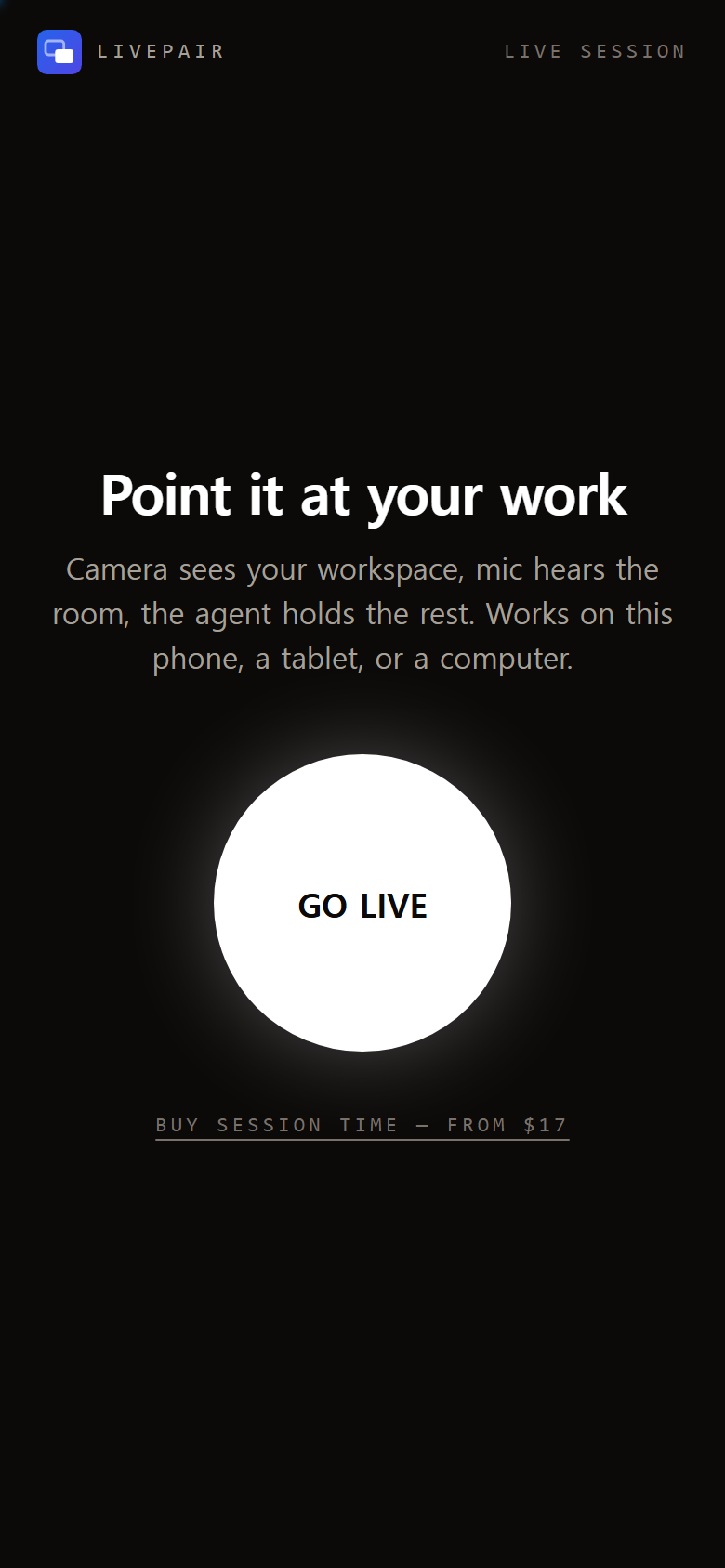
- Task mode — /live — the work surface. Screen, camera, and mic feed the agent while you keep both hands on the job; answers land on the HUD in context. For meetings, builds, debugging, live calls — anywhere you'd look away to type. The three screens in the next chapter are this mode. Work sessions need the 60-minute tier or more in your pool.
- Joy Alive — /live?mode=alive — the carry-around companion. The rear camera fills the screen while you walk or work; callouts land as chips, it speaks out loud when something matters, and a route card can map the way out. For places you can't watch a screen — walks, sites, hazard zones (chapter 07). Any pack size.
- Duo — /live?mode=fun — the fun surface, mic only. Two voices keep a hangout going while you listen or jump in. $10 for 30 minutes.
The pool is shared — minutes left over from a Duo night fund your next work session. And the chat at /playground is the same agent without the camera: it bills from credits, not minutes (chapter 10).
What it looks like
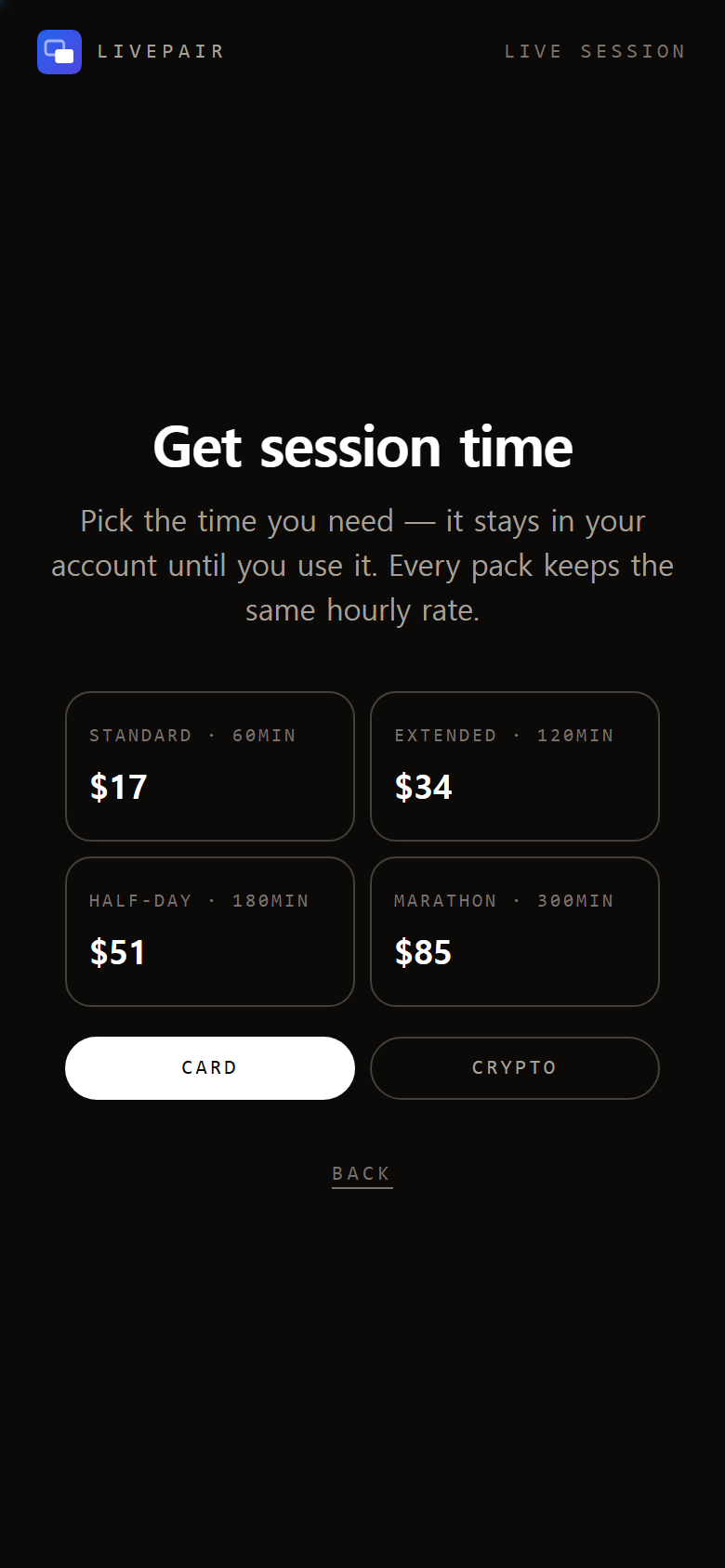
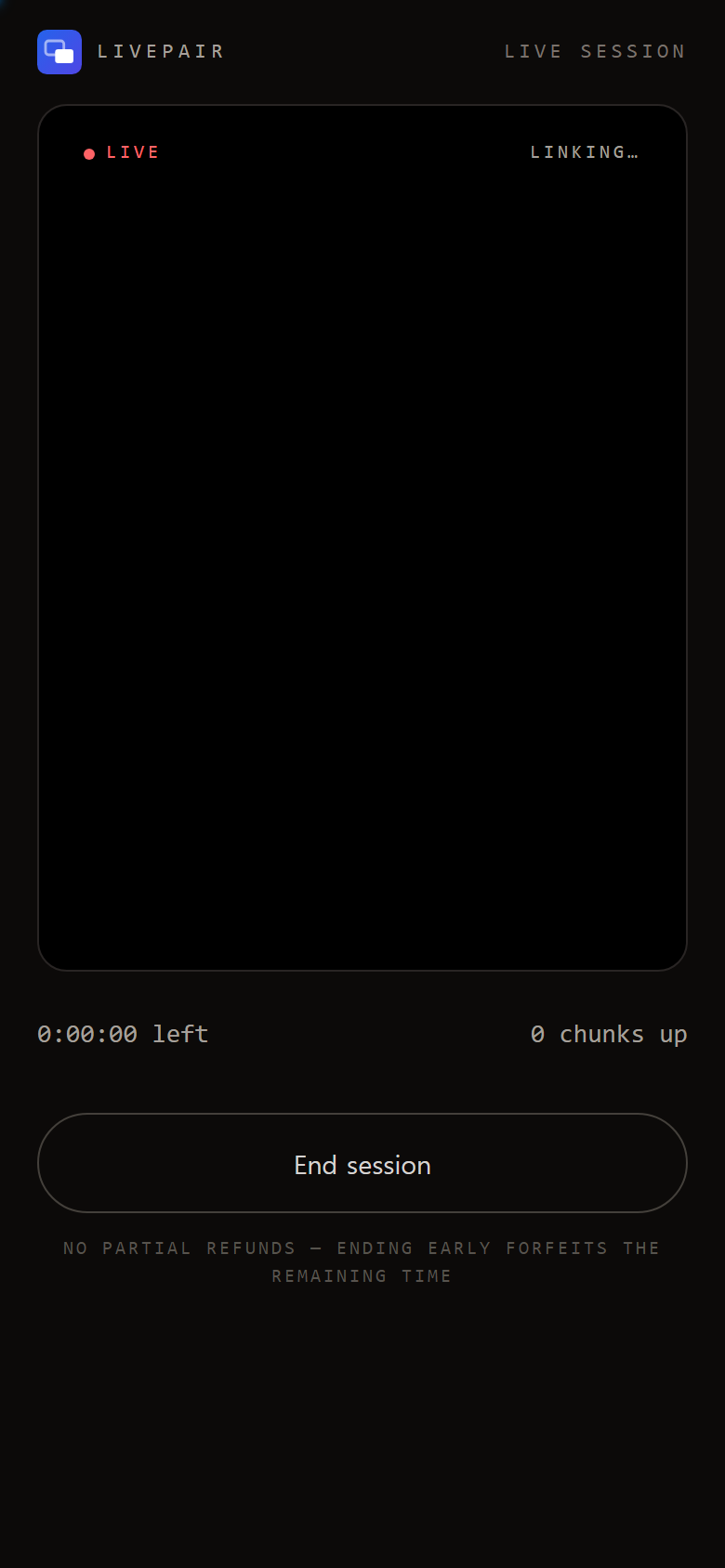
The whole session is three screens. No menus, no settings to learn:
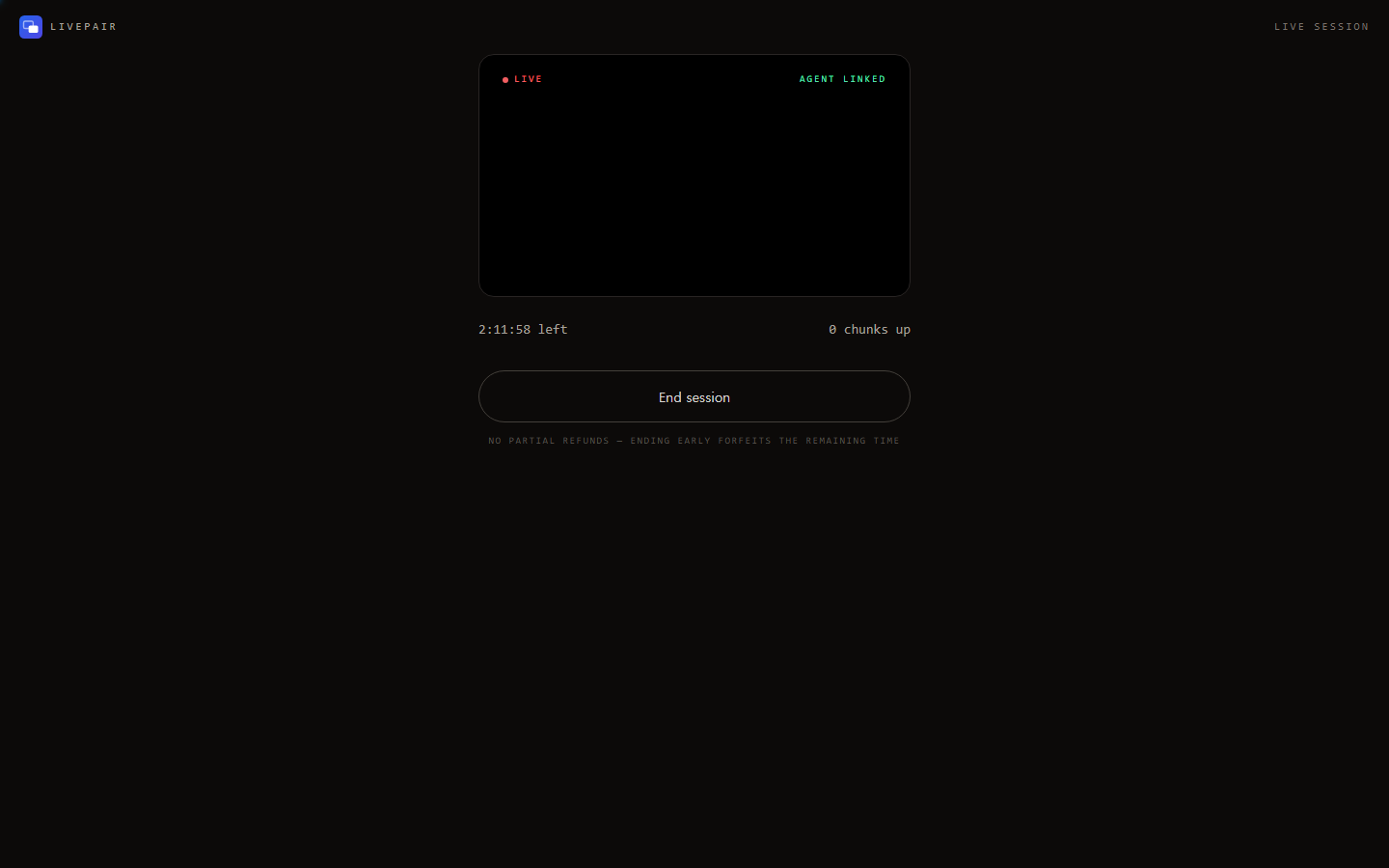
The same three screens on a bigger display — the layout adapts, nothing else changes:
Pricing & billing
Session time is sold in minute blocks at $3/hour — the rate moves with measured provider cost, and the grid below always shows what it resolves to today. Buy once, spend it across as many sessions as you need:
Duo
$10
30 min
Fun
$2.5
50 min
Standard
$3
60 min
Extended
$6
120 min
Half-day
$9
180 min
Marathon
$15
300 min
How the meter actually works — the parts people ask about:
- Starting a session draws minutes upfront. When you tap GO LIVE, the session pulls up to 5 hours from your pool at once. That's the session's hard budget — it can't silently bill past it.
- The meter is wall-clock. Once a session starts, drawn minutes burn in real time — the clock keeps running if you mute the mic, minimize the tab, or close it entirely.
- Ending early keeps the rest. If you stop a 5-hour session at the 2-hour mark, the undrawn ~3 hours go back to your pool — only the elapsed time is spent.
- Your pool never expires — unused minutes sit in your account until a session draws them.
- Pool empty = session ends. There's no overage and no surprise card charge; the session simply stops.
why the price — a live hour burns real provider cost (multimodal model + voice) every minute it runs. The current rate is $3/hour; the price tracks provider cost at a fixed margin, so it may adjust — minutes you already bought are never repriced.
Start your first session
Sign in at livepairai.com — one tap with Google, works on any device.
Buy a time pack on /live — work sessions start at the 60-minute tier; Duo is $10 for 30 minutes and fun mode runs from the 50-minute pack — card via PayPal, or crypto (BTC, ETH, USDC). The minutes land in your account the moment payment clears.
Tap GO LIVE. The browser asks for camera and mic — allow both; they're the agent's eyes and ears.
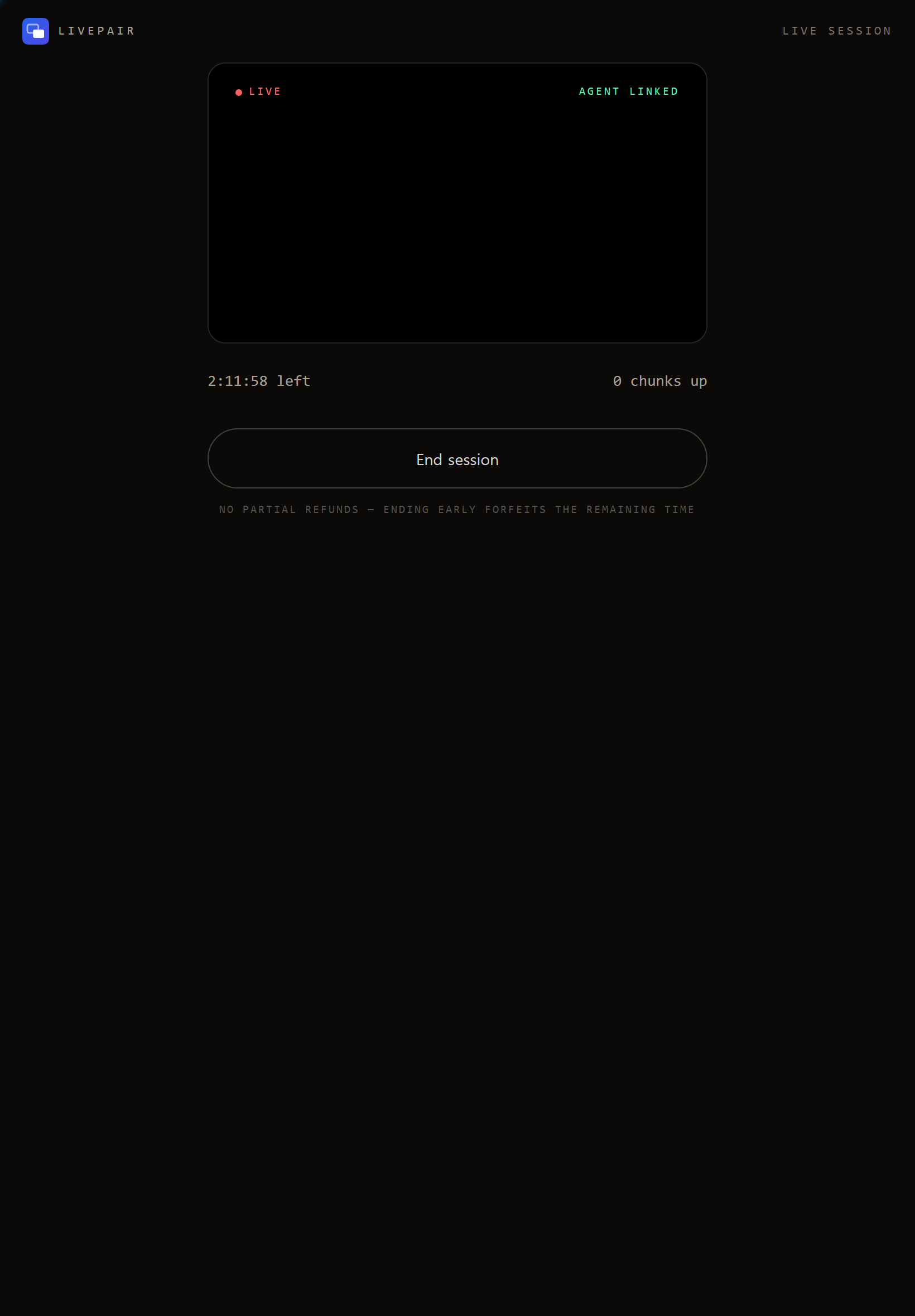
Point the camera at your work. The HUD shows agent linked when the connection is live — from there, just work. Talk to it or don't; it watches either way.
While it runs
The HUD tells you three things
- live — the red dot means the agent is actively watching and listening.
- agent linked — the realtime connection is up. If it drops to linking… it's reconnecting; your session keeps running.
- time left — the countdown is your drawn minutes, ticking in wall-clock.
What the agent does with the feeds: surfaces answers and flags while the question is still open, holds context from earlier in the session ("like I said before" works), and shows its uncertainty — when the HUD says it's guessing, treat it as a lead, not a fact.
Emergencies
On a phone, Joy Alive can ride your point of view — open /live?mode=alive, prop the phone so the rear camera faces forward, and go live. A separate watch layer reads the scene continuously and grades what it sees:
- Ordinary — it stays quiet. A watch that narrates everything is noise; this one only speaks up.
- Worth noticing — a caution chip lands on the HUD: a step down ahead, a wet floor, someone closing in.
- Dangerous right now — it says so out loud, immediately, in plain words: what it sees and the next move.
If you enable location, your position fix rides every observation, so it can ground guidance in your local context without asking. The connection survives satellite and spotty networks — the session is built on small web requests, and gaps are tracked honestly instead of hidden. Connectivity details.
Joy Alive is an assistant, not an emergency service: in a real emergency, official alerts and responders come first.
Pausing, ending, reconnecting
Reconnecting: if the tab closes or the network drops, the session keeps running. Reopen /live and you rejoin the same session — context intact, no second charge, no new draw.
Ending: tap End session on the HUD. This is the only clean stop — closing the tab alone leaves the meter running until the drawn time expires.
Pausing: there is no pause — a live agent's context is expensive to freeze, so sessions are deliberately all-or-nothing. If you need a break, end the session and start a fresh one later; undrawn minutes in your pool are untouched.
Phone, tablet, or desktop
Run /live in a desktop browser or on an Android device — nothing to install:
- Android phone — the default mobile host. Prop it where the rear camera sees your workspace, or carry it POV-style with mode=alive. The FLIP button on the HUD swaps front/rear camera mid-session. Add to home screen once and it's one tap. iPhone/iPad hosts camera-only sessions in Safari (beta) — iOS can't share its screen, so the phone's camera is the input. Open the link in Safari, not inside another app.
- Tablet — same thing, bigger HUD.
- Laptop/desktop — webcam + mic out of the box.
Optional: use the phone as a second camera for a desktop session — install DroidCam on the phone + client on the PC, connect over Wi-Fi or USB, pick DroidCam as the camera source. Nice to have, never required.
Session time vs. credits
Two separate balances, don't confuse them:
Session time
Minutes for Joy Alive. Bought in packs, drawn when a session starts, never expires. When a session ends early, the undrawn minutes return to your pool automatically.
Credits
Prepaid balance for agent chat — pay per message, from $5. Every charge itemized on your billing page.
What you bought, what you used, and what's left all show on dashboard → billing.
Privacy
- Session video and audio are processed live — we do not store recordings of you.
- We don't sell your data or use it to train models.
- Ad measurement on the marketing site never touches session content.
Full details in the privacy policy.
Troubleshooting
Camera or mic not detected?
The browser permission prompt is the usual cause — allow each source and retry. For DroidCam, confirm it's running on both devices on the same network.
Lost connection mid-session?
Reopen /live — the session is still running and you rejoin with context intact. Reconnects never double-bill.
Session ended early?
The drawn minutes ran out or the session was stopped. Your remaining pool is on the billing page — undrawn time is untouched.
Paid but time didn't appear?
Refresh billing — fulfillment is automatic but can lag a minute. Still missing after 10? Email support with your order id.
Ready to go live?
Open /live